Sunday, October 13, 2013

Lesson 12: How to Remove an Object in Pixlr

Lesson 12: How to Remove an Object in Pixlr


Getting Started

1) Open Pixlr Advanced

2) Open an image that you want to remove an object on it,
     https://blogger.googleusercontent.com/img/b/R29vZ2xl/AVvXsEhvx17_B3iOwP91sakhkE84vIh9KIck2f1URJlPOYY4utZupukgs4uPsRer34q1RsK8clJxcrLDYev-bOX2ONwLMHxP-ynlFCshEK8DCv7D0m7N8Fm9WfoqBMlEtIRhQRU7TvK9137W00U/

Brush Adjustments


1) Select Clone Stamp Tool(s) from the tools menu on the left side of the screen.

2) Then adjust your brush size on the top of the screen according to object. I will go with 30.

3)After that, adjust the opacity. I recommend you to use a value between 90 and 100. I will go with 95.

remove unwanted objects


Note: If you have trouble about finding tools, this may help ; 
             Basics of Pixlr

Removing the object

1) We have to take a sample pattern to apply it on   the object. 
   The Clone Stamp Tool is change the pattern as selected before
   In our example, I want to remove the pink car so that I have to choose the road pattern

remove unwanted objects


2) Press "Ctrl" to select the pattern.

3) You have be very careful while using this tool because. It does not stay stable while removing the object. The point the you choose will change according to your mouse movements.

4) By clicking the left button of mouse remove the object.

remove unwanted objects

Tricks

1) Move your brush in the same direction all the time. Otherwise, it will look like blurred.

2) If you are not satisfied with your sample pattern, you can always change it.

how to erase an object,

Tuesday, September 17, 2013

Sunday, September 15, 2013

Lesson 11: "BASIC" How to Replace the Color of an Object in Pixlr

 Lesson 11

"BASIC" How to Replace the Color of an Object in Pixlr


The car example for color replacement included more advance tools and I decided to make a new tutorial for basic level. This tutorial does not consist more than Lesson 4.


Getting Started

1) Open Pixlr Advanced

2) Open an image that you want to replace it's color,
     http://hypebeast.com/image/2009/05/selfridges-coca-cola-centenary-bottles.jpg


Pixlr Color Replace Basic

Replacing Color 


1) Go to the Tools Menu which is on the left side of the screen and choose the Color Replace Tool.

2) Select a color by clicking set main color. (At the bottom of that Menu)

How to Replace the color of an object


3) Adjust the Tolerance according to color image and color tones. 

4) Select a brush size according to your object.

Pixlr Color Replace Basic


5) Start Replacing like painting the object :) 

Pixlr Color Replace Basic


Wednesday, July 24, 2013

Lesson 10 : How to Remove the Background of an Image in Pixlr


Lesson 10: How to Remove the Background of an Image in Pixlr


Getting Started

1) Open Pixlr Advanced

2) Open an image that you want to remove and delete the background of it,
     http://upload.wikimedia.org/wikipedia/commons/7/7b/Eucritta1DB_white_background.jpg


Select the Part

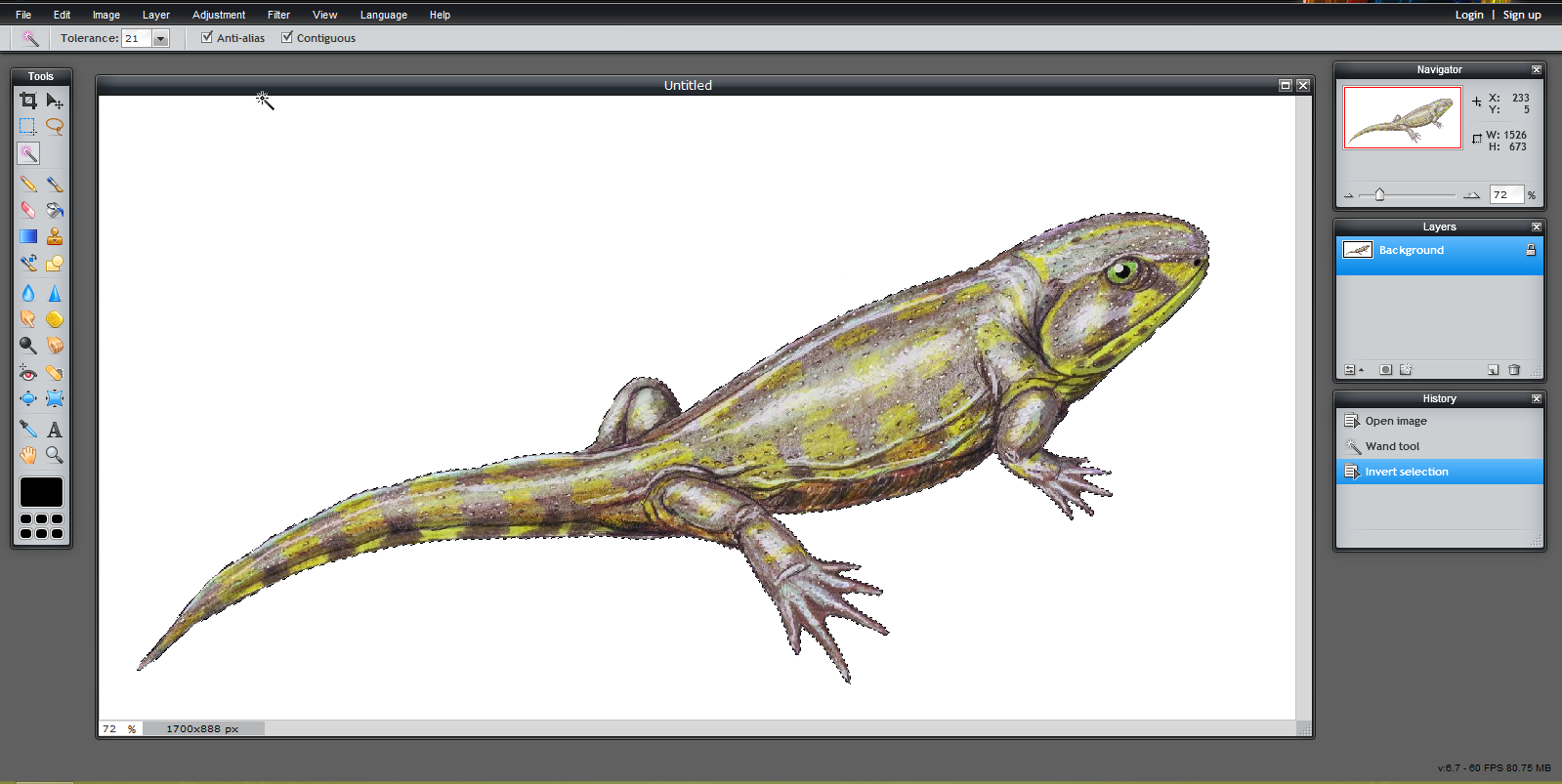
1) Use Wand Tool (W) or Lasso Tool (L) to select the part that you want to take out from the image. I am going to use the Wand Tool (W) so that I have to do one more step.


1a) For only Wand Tool (W) users: Go to Edit Menu on the top of the screen and click on Invert Selection.


Copy the Image and Paste


1) Go to Edit Section again and press Copy ( Ctrl + C) 


2) Go to Edit Menu Again :) and push Paste Button ( Ctrl + V)

Removing the Background ( Delete)


1) You are going to see that there is a new layer created on Layer palette on the right of the screen. Double click the lock near the Background Layer which is under the Layer 1. It will switch to ticked box as Layer 1.

2) Then while Background Layer selected, press the Delete Layer in the Layer Palette.


Saving the New Image


1) Save as PNG otherwise it won't be as you want.


Saturday, May 11, 2013

Lesson 9: How to Write a Patterned Text in Pixlr

Lesson 9: How to Write a Patterned Text in Pixlr


Getting Started

1) Open Pixlr Advanced

2) Click to Create a new image and create 800x600 sized image. (The 800x600 is optional)

Writing The Text  

1) Click Type Tool (T) on the Tool Menu and add the text that you want to make patterned. (Wide Latin, size: 103)


2) Use Move Tool (V) to put the text at the center of the image

3) Go the the Layers Menu on the right side of the screen between the History Menu and Navigator. Right Click to the Layer which contains your Text and select Merge Down


4) Then, double click to the locker in the Layers Menu, near the Background text. It should turn to a checked box

Adding The Pattern Image


1) Go the the Layer Menu on the top of the Website which is in the black stripe near the Image Menu. After that, open an image from your computer or URL. My pattern's URL: http://3.bp.blogspot.com/-TgyfpYbTFz0/UBjatFWB7_I/AAAAAAAABg4/vW8CZU_NuW8/s1600/Hawaii-beach.jpg


2) There will be Layer 2 and Layer 0 come up in the Layers Menu on the right side of the screen. Go to Layer 0 which contains your texture and surround the Text with using Wand Tool (W)

TRICK: If you have a letter like A and R, Do not forget to surround the inner part of it with using Shift Button and Wand Tool (W)


3) Now, Scroll the Layer 2 to the Layer 0's place with grabbing and dropping with your mouse.


 4) When you get a image as in the picture, Use the Eraser Tool (E) and start to erase the background.


 Details


1) Go to the Edit Menu and press Deselect All (Ctrl + D)

2) Use the Layer Styles to give shadows of your text.


3) In the Layers Menu, right click to Layer 2 and press Merge Down.

4) Save it in PNG format from the File Menu.

Wednesday, May 8, 2013

Lesson 8: How to Blur a Face in Pixlr

Lesson 8: How to Blur a Face in Pixlr


Getting Started

1) Open Pixlr Advanced

2) Open an image that you want to blur a part of it from your computer or an URL,
     http://mujer.starmedia.com/imagenes/2012/11/Existe-la-amistad-entre-el-hombre-y-la-mujer.jpg


How to Blur the Face

1) Select the part that you want to blur with Lasso Tool (L) or Marquee Tool (M)


 2) Go to Filter Menu on the black stripe, then click to Box Blur


 3) Select the blur amount in the menu which came out. (In my image it is 10)


4) Click to Deselect All (Ctrl + D) in the Edit Menu 


Tuesday, May 7, 2013

Lesson 7: How to fix the parts that you don't want in your picture (Nevus, Freckle, Beard, Burn etc.)

Lesson 7: How to fix the parts that you don't want in your picture (Nevus, Freckle, Beard, Burn etc.)


Getting Started

1) Open Pixlr Express

2) Open an image that you want to fix a part of it. I am going to fix a nevus which is quite simple. URL:
     http://www.haber34.com/hr/cok-benli-uzun-mu-yasiyor--25577.jpg


Overlap the Nevus

1) Go to the Adjustment Menu which is the first square on the line.


2) Then Click on Touch Up 

3) Spots will be selected in the Touch Up Menu, Do not chance it. You can set the brush size according to your image size.


4) Go over the parts that you want to fix.


Monday, May 6, 2013

Lesson 6: How to Desaturate (Black and White) a Picture while an Object is still Colorful


Lesson 6: How to Desaturate (Black and White) a Picture while an Object is still Colorful


Getting Started

1) Open Pixlr Advanced

2) Browse the image that you want to desaturated from you computer or an URL:
    http://resources1.news.com.au/images/2011/12/29/1226232/712937-child-gardening.jpg

Desaturation of an object


Surround the Part that you Want to Keep Colorful

This is an optional part because you do not want to keep a colorful part in you image, it is quite cool effect. You apply it on daily photos too. For example, cell phones and bags are very popular items for this technique. 

1) Click on the Lasso Tool (L) icon on the tool bar.

2) Press Ctrl + A to select all the image.

Image Select Ctrl A

3) Use the Lasso tool (L) to surround the part/object that you want to keep colorful. There are 2 types of Lasso Tool (L) that you can find in the gray stripe on the top of website; Freehand Lasso Tool and Polygonal Lasso Tool. I am going to use the Polygonal Lasso Tool, because it is more accurate than Freehand Lasso Tool. You can zoom in the object while using the Lasso Tool. Lastly, because you selected the whole image, you must use the CTRL button while using the Lasso Tool (L).

Polygonal and Free hand

Desaturate the Image and Missing Parts

1) Go to the Adjustment Menu in the black stripe and click to Desaturate.

Lasso Tool

2) There will be not desaturated parts like the leaf and finger. You have use the Lasso Tool (L) again to select the fingers and leaf. There is no need to select all the image right now, so that must use Shift button while selecting more than one item. 


Pixlr Polygonal


3) After Choosing the undesaturated parts in the image by Lasso Tool (L), go to the Adjustment Menu and Click to Desaturate Button.

Pixlr Adjustment menu

4) Lastly, to get rid of the lines in the image, go to the Edit Menu and Click to Deselect All (Ctrl + D)


Sunday, May 5, 2013

Lesson 5: How to Make a Banner with Pixlr

Lesson 5: How to Make a Banner with Pixlr


Getting Started 

1) Open Pixlr Advanced

    There are very good free images, of course, you can find another pictures from other sites too...

3) I am going to use the images from these URL's;

4) First browse your background picture. (For me its lightnings)

How to make banner


 Resizing as a Banner and Cropping Moon 


1) Open the Lightning image from your computer after downloaded.

2) Crop the image as you want (Lesson 1)


Cropping in Pixlr

3) Re size your image (It may change according to your usage) I am going to re size it 800x200
    Recall: Lesson 2

Pixlr Resize picture

Putting the Moon

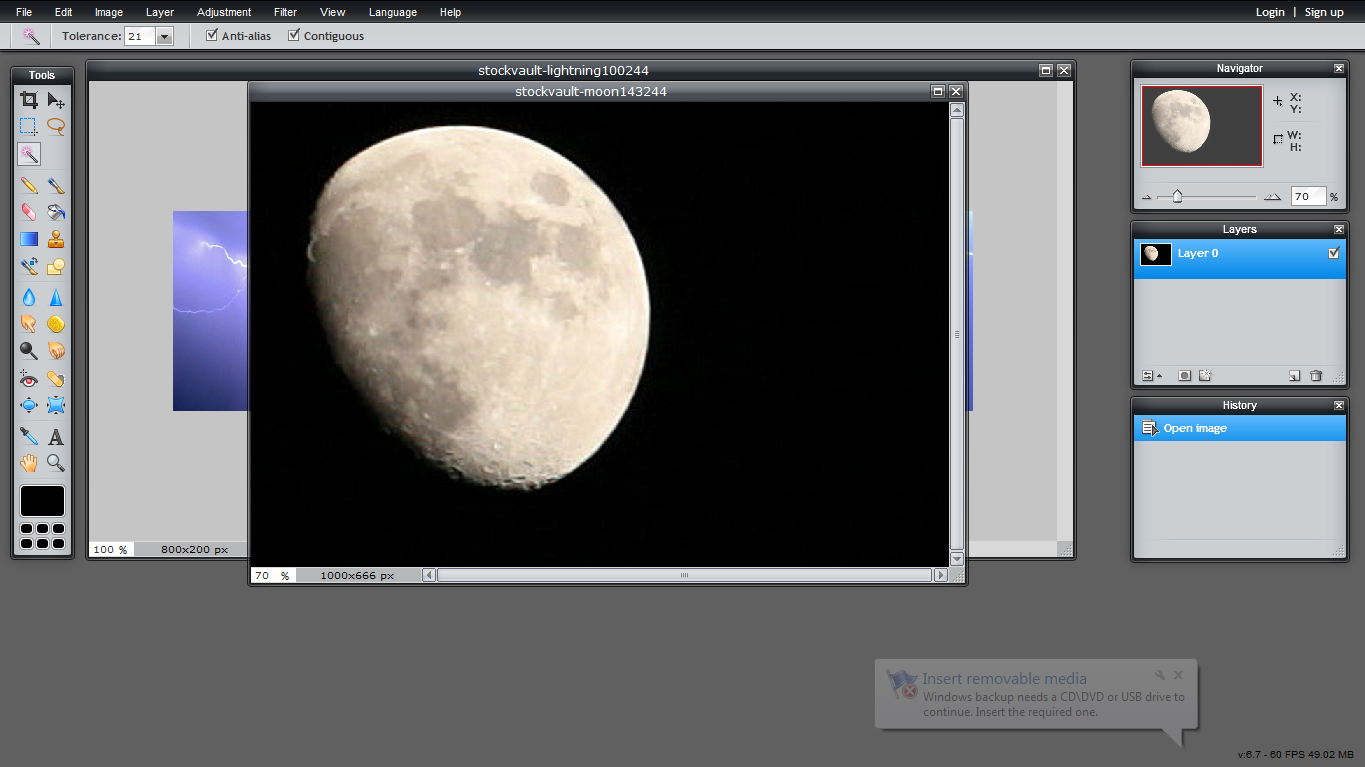
1) Open the other image(s) that you want to apply to your background. I would like to put a moon image among the lightnings. 


Open image in Pixlr


2) Go to the Layer Menu on the right side of the screen and press the lock near the background writing. It will turn to a checked box.  


Pixlr Lock


3) Use the Wand Tool (W) or Lasso Tool (L) to capture the object that you want to put in your banner. I will use the wand tool because the colours are clear. If the colors are mixed like green and yellow the wand tool usually not capable to surround the object. Don't worry :) There is Lasso Tool for you.

Pixlr Wand Tool


4) After surrounding the the object that you want, press Delete button and background of the image will be checkered. Now, it is time to re size you object according to your background size. You have to use Free Transform (Ctrl + T) in the Edit Menu.


Pixlr checkered


5) Use Marquee Tool (M) to select the image which you will put in your banner (Moon), then copy it with using Copy (Ctrl + C) in the Edit Menu. 

6) Paste it to the Banner image by using Paste (Ctrl + V) in the Edit Menu

7) Use the Move Tool (V) to put it where you want

8) You can re size it with using Free Transform Tool (Ctrl + T) again but make sure that Layer 1 is selected in the Layer Menu on the right side of screen.

Pixlr Free Transform


 Adding Texture 


1) Click on the Type Tool (T) on the Tool Bar. 

2) Select the place that you want to add texture on the banner. Do not worry if you missed the exact place, because there is the Move Tool (V) which is quite helpful. 

3) You can arrange the Font, Style, Size and Color in the Type Tool Menu

Pixlr Font Size Color


4) It's done. Save you new banner from File Menu. 


How to make a banner in pixlr
Yandex.Metrica